.COLORS 文件扩展名

Painter Color Set

开发者 Corel
受欢迎程度
4.0  |  4 
 

什么是 COLORS 文件?

A COLORS file is a color set created and used by Corel Painter, a digital painting application. It contains a set of colors that a user manually grouped together or created from an image or layer. Saving a color set as a COLORS file allows artists to import and use that color set in other projects.

更多信息

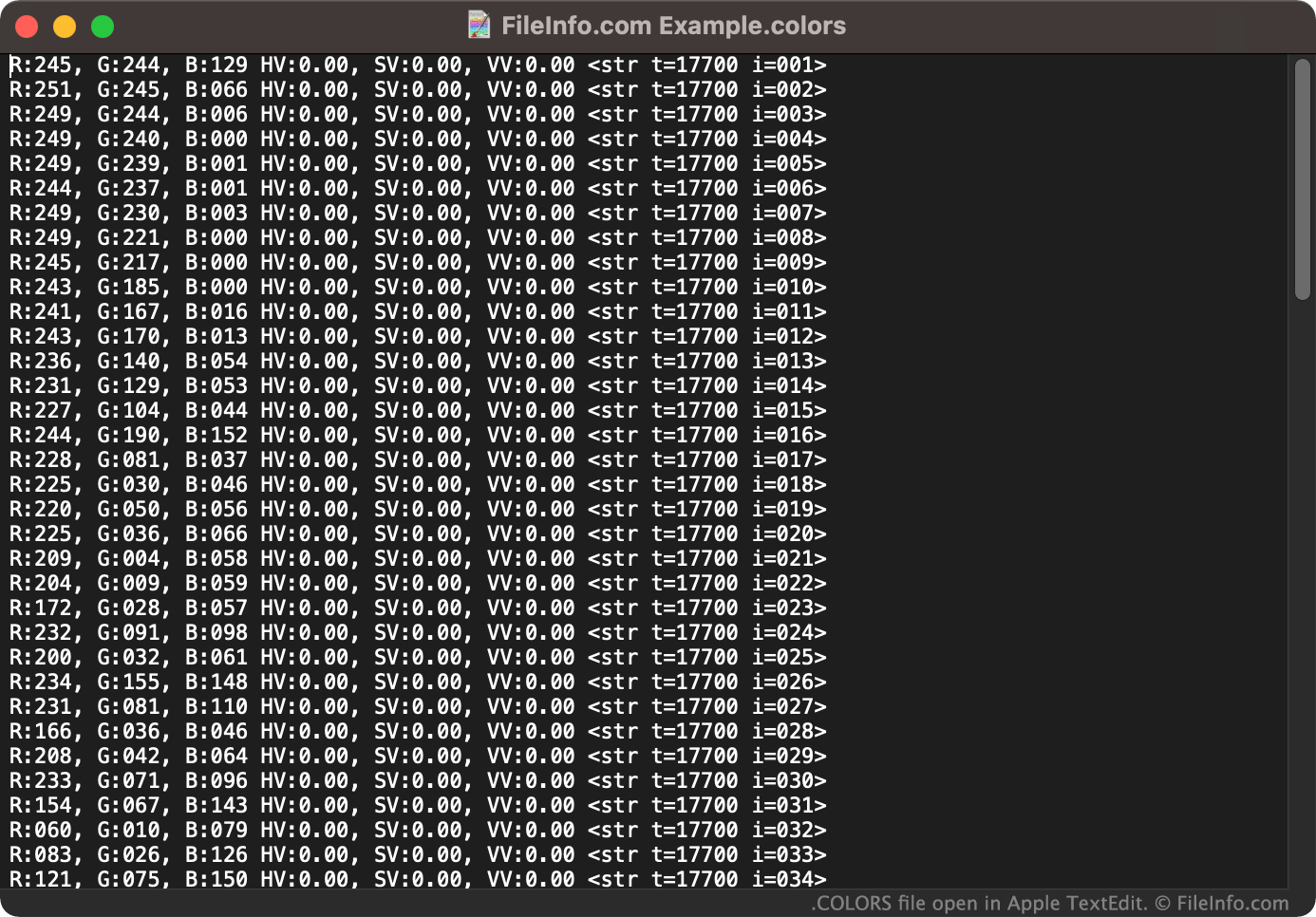
在 Apple TextEdit 中打开的 .colors 文件截图
在 Apple TextEdit 中打开的 COLORS 文件

Artists can use Corel Painter's Color Set Libraries panel to group many colors together into a color set. For example, an artist who is creating multiple pieces of artwork that will be used by the same company may want to group that company's brand colors into a color set. Then, the artist can quickly choose the correct, company-approved color(s) from the color set while painting, drawing, or adding text and shape elements.

If an artist knows they will use a color set they've created again in the future, they can save that color set as a COLORS file. Then, the artist can import the color set and quickly select colors from it when working on future projects.

How do I save a Corel Painter color set?

To save a color set as a COLORS file:

  1. From Painter's Palette Drawer, select the Color Set Libraries panel.
  2. Select the sandwich menu button that appears next to the Color Set Libraries panel.
  3. Select Export Color Set....
  4. Follow the prompts to name and save your color set as a COLORS file.

如何打开 COLORS 文件

You can import the color set a COLORS file contains into Corel Painter (Windows, Mac). To do so:

  1. From Painter's Palette Drawer, select the Color Set Libraries panel.
  2. Select the sandwich menu button that appears next to the Color Set Libraries panel.
  3. Select Import Color Set....
  4. Navigate to and open your COLORS file.

If necessary, you can also open a COLORS file as a text document in any text editor, such as Microsoft Notepad (Windows) or Apple TextEdit (Mac). This will allow you to view the RGB values associated with the color set your COLORS file contains. (For example, you might want to open your COLORS file in a text editor if you do not have access to Corel Painter and need to see what colors the file contains.)

使用File Viewer Plus打开 400 多种文件格式。免费下载

可打开 COLORS 文件的程序

Windows
免费试用
Mac
免费试用
分类: 设置
更新时间: 2021-12-10

Scratch 2.0 Block Colors File

开发者 MIT
受欢迎程度
2.4  |  5 
 

A COLORS file contains color information used by Scratch 2, an application development platform created at the Massachusetts Institute of Technology (MIT). It contains color information about blocks that appear in the Scratch 2 interface, allowing users to better organize blocks of code. COLORS files cannot be opened in Scratch 3 and later versions.

更多信息

Scratch is an easy-to-learn programming language that helps kids develop games, animations, and interactive stories. In Scratch, blocks are visual representations of code snippets that developers piece together to create a script or program.

COLORS files were created and referenced only by Scratch 2. Developers saved and loaded COLORS files using Scratch 2's Edit Block Colors menu, which was accessed by holding the Shift key when clicking the Edit menu. With the menu open, developers could click Load to open a COLORS file or click Save to save a COLORS file. However, MIT chose to phase the Edit Block Colors feature out of Scratch 3 and later versions, so Scratch no longer uses COLORS files.

注: When using the web version of Scratch 2, developers' color information may have been saved in .BIN files.

如何打开 COLORS 文件

Unless you still have access to Scratch 2, you will not be able to open a COLORS file. Scratch 3 and later versions do not include the Edit Block Colors feature, so developers cannot open COLORS files in those versions of Scratch.

可打开 COLORS 文件的程序

Windows
Mac
Linux
Web
分类: 设置
更新时间: 2020-12-21

验证者 FileInfo.com

FileInfo.com 团队 独立研究了本页面列出的所有文件格式和软件程序。 我们的目标是达到 100% 的准确率,并且仅发布我们已验证过的文件类型信息。

如果您想为此页面提出新增或更新建议,请告诉我们