

.COLORS Extensão de arquivo
Conjunto de cores do Painter
| Desenvolvedor | Corel |
| Popularidade |
4,0 | 4 Votos |
O que é um arquivo COLORS?
Um arquivo COLORS é um conjunto de cores criado e usado pelo Corel Painter, um aplicativo de pintura digital. Ele contém um conjunto de cores que um usuário agrupou manualmente ou criou a partir de uma imagem ou camada. Salvar um conjunto de cores como um arquivo COLORS permite que artistas importem e usem esse conjunto de cores em outros projetos.
Mais informações
Os artistas podem usar o painel Color Set Libraries do Corel Painter para agrupar muitas cores em um conjunto de cores. Por exemplo, um artista que está criando várias obras de arte que serão usadas pela mesma empresa pode querer agrupar as cores da marca dessa empresa em um conjunto de cores. Assim, o artista pode escolher rapidamente a(s) cor(es) correta(s) e aprovada(s) pela empresa no conjunto de cores enquanto pinta, desenha ou adiciona elementos de texto e formas.
Se um artista souber que usará novamente no futuro um conjunto de cores que criou, poderá salvá-lo como um arquivo COLORS. Depois, o artista poderá importar o conjunto de cores e selecionar rapidamente cores dele ao trabalhar em projetos futuros.
Como salvo um conjunto de cores do Corel Painter?
Para salvar um conjunto de cores como um arquivo COLORS:
- No Palette Drawer do Painter, selecione o painel Color Set Libraries.
- Selecione o botão de menu em forma de sanduíche que aparece ao lado do painel Color Set Libraries.
- Selecione .
- Siga as instruções para nomear e salvar seu conjunto de cores como um arquivo COLORS.
Como abrir um arquivo COLORS
Você pode importar o conjunto de cores contido em um arquivo COLORS para o Corel Painter (Windows, Mac). Para fazer isso:
- No Palette Drawer do Painter, selecione o painel Color Set Libraries.
- Selecione o botão de menu em forma de sanduíche que aparece ao lado do painel Color Set Libraries.
- Selecione .
- Navegue até o arquivo COLORS e abra-o.
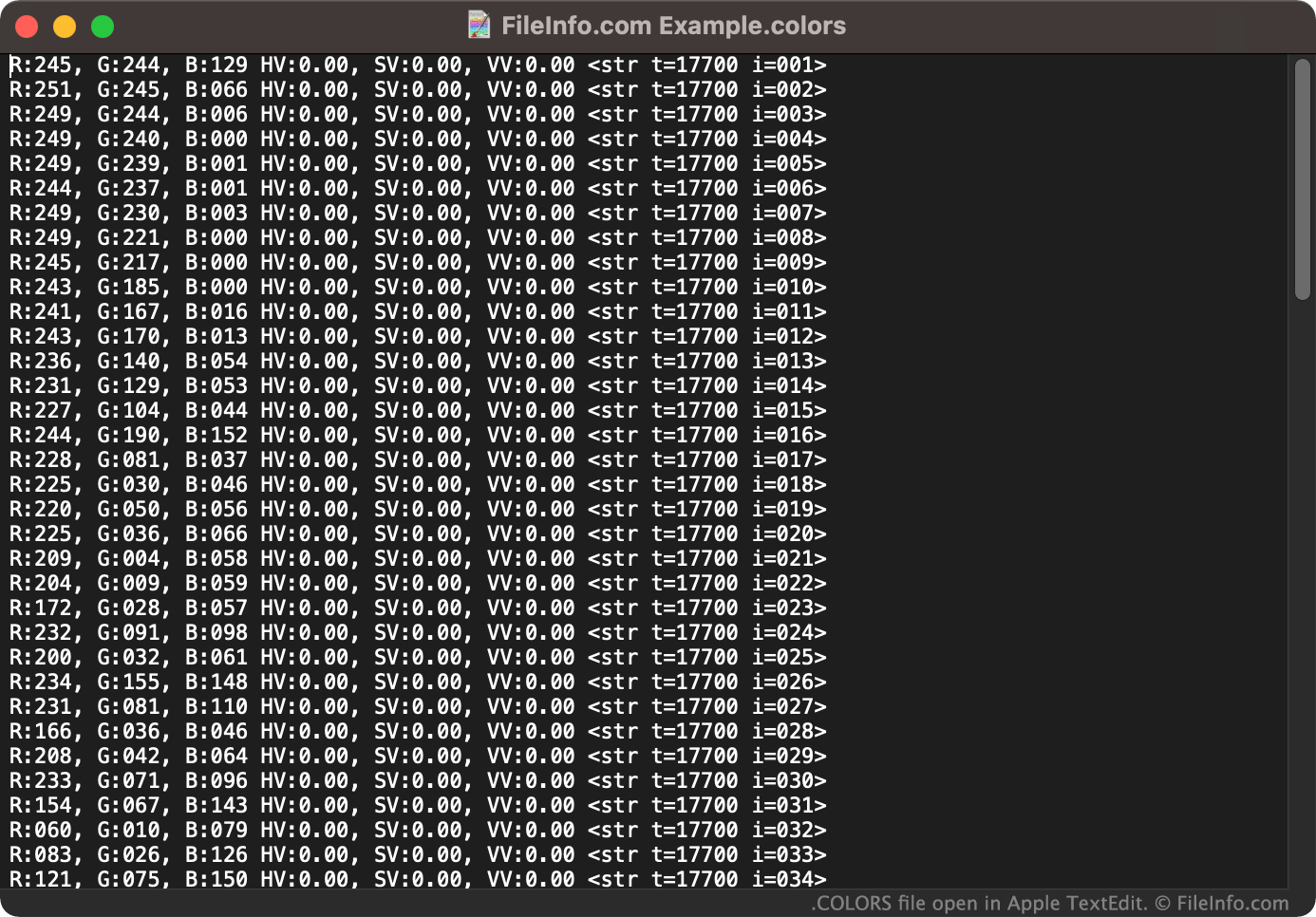
Se necessário, você também pode abrir um arquivo COLORS como um documento de texto em qualquer editor de texto, como o Microsoft Notepad (Windows) ou o Apple TextEdit (Mac). Isso permitirá que você veja os valores RGB associados ao conjunto de cores contido no arquivo COLORS. (Por exemplo, talvez você queira abrir o arquivo COLORS em um editor de texto se não tiver acesso ao Corel Painter e precisar ver quais cores o arquivo contém.)