

.TSCPROJ Extensão de arquivo
Projeto do TechSmith Camtasia
| Desenvolvedor | TechSmith |
| Popularidade |
4,2 | 10 Votos |
O que é um arquivo TSCPROJ?
Um arquivo TSCPROJ é um projeto criado pelo TechSmith Camtasia, um aplicativo de gravação de tela e edição de vídeo. Ele contém os locais de todas as gravações e arquivos de mídia .TREC incluídos no projeto, além das edições e dos efeitos aplicados ao projeto. A versão do Camtasia para Windows salva projetos como arquivos TSCPROJ por padrão, enquanto a versão para macOS salva projetos como arquivos .CMPROJ; ambas as versões podem abrir arquivos TSCPROJ.
Mais informações
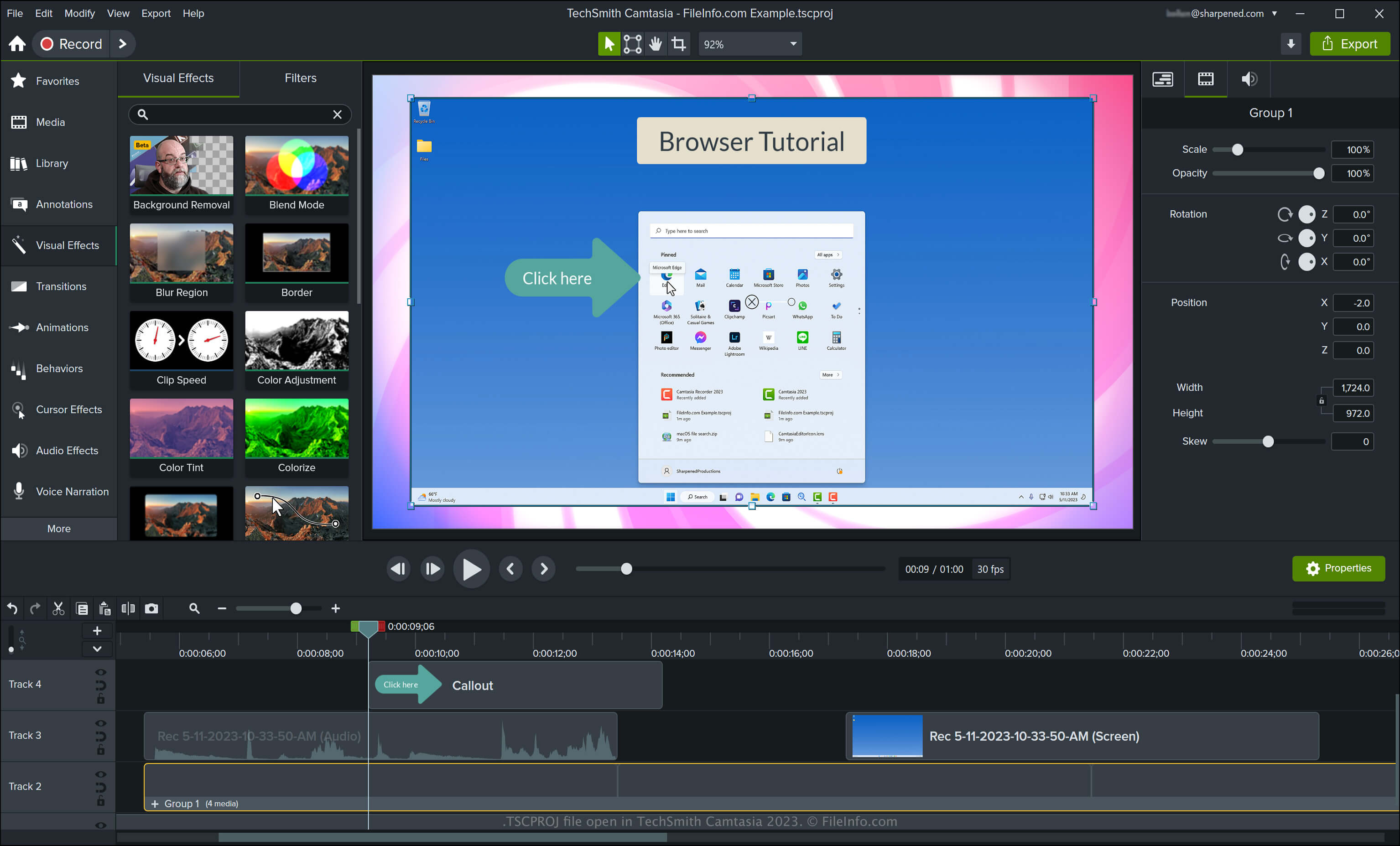
O Camtasia pode criar vários tipos de vídeo, incluindo tutoriais, gravações de videogames, vídeos de treinamento e gravações de webinars. A TechSmith introduziu o tipo de arquivo TSCPROJ quando lançou a versão 9 do Camtasia para Windows, substituindo o tipo de arquivo .CAMPROJ usado pelas versões do Camtasia para Windows. Embora a versão do Camtasia para macOS salve projetos como arquivos CMPROJ, ela também pode exportá-los como arquivos TSCPROJ.
Como criar um arquivo TSCPROJ com a versão do Camtasia para Windows
Ao salvar um vídeo com a versão do Camtasia para Windows, o aplicativo cria um arquivo de projeto TSCPROJ para armazenar o conteúdo. Depois de salvar o arquivo TSCPROJ, você pode fechá-lo e reabri-lo para continuar editando. Para criar um arquivo TSCPROJ com a versão do Camtasia para Windows, siga estas etapas:
- Selecione ou se ainda não tiver iniciado um projeto
- Selecione ou
- Dê um nome ao projeto, escolha o local para salvá-lo e clique em
Como criar um arquivo TSCPROJ com a versão do Camtasia para macOS
Você pode criar um arquivo TSCPROJ com a versão do Camtasia para macOS selecionando . Esse processo cria um arquivo .ZIP, que contém o arquivo TSCPROJ.
Como abrir um arquivo TSCPROJ
Você pode abrir um arquivo TSCPROJ com o TechSmith Camtasia no Windows e no macOS selecionando .
NOTA: Se você salvou o projeto como um projeto independente com a versão do Camtasia para Windows, precisa clicar duas vezes na pasta de arquivos com a extensão .tscproj (que terá o mesmo nome do projeto) e, então, poderá abrir o arquivo TSCPROJ propriamente dito.
Abrindo um arquivo TSCPROJ com um editor de texto
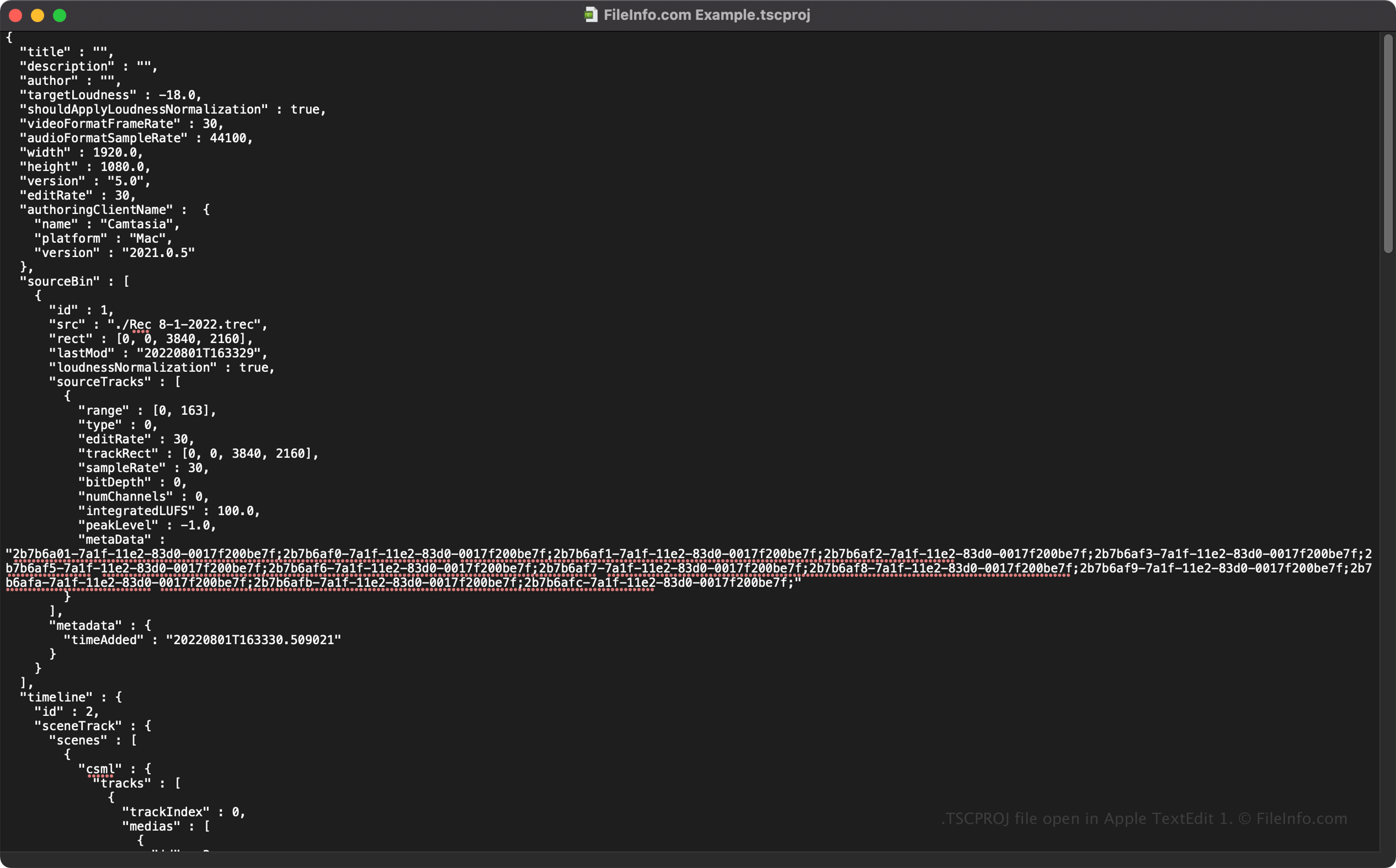
Como os arquivos TSCPROJ armazenam informações em texto simples, você pode abri-los com editores de texto, como o Microsoft Notepad e o Apple TextEdit, e visualizar suas informações e metadados.
Você pode modificar as propriedades do arquivo TSCPROJ quando ele estiver aberto em um editor de texto. No entanto, lembre-se de que, se editar o arquivo incorretamente, poderá corromper o projeto sem querer.
Como converter um arquivo TSCPROJ
O Camtasia pode converter um arquivo TSCPROJ para vários tipos de arquivo, incluindo os seguintes formatos:
- .MP4 - Vídeo MPEG-4
- .GIF - Formato de intercâmbio de gráficos
- .M4A - Áudio MPEG-4 (somente Windows)
- .MOV - Filme Apple QuickTime (somente macOS)
Você também pode exportar um arquivo TSCPROJ como um .CAMPACKAGE para fazer backup ou compartilhar recursos com outros usuários do Camtasia. Para fazer isso, selecione .