

.FIG Rozszerzenie pliku
Plik figury MATLAB
| Deweloper | The MathWorks |
| Popularność |
3,8 | 16 Głosów |
Czym jest plik FIG?
Plik FIG zawiera figurę utworzoną w aplikacji The MathWorks MATLAB, służącej do obliczeń matematycznych i analizy danych. Przechowuje jeden lub więcej wykresów, których MATLAB używa do wizualizacji danych. Pliki FIG przechowują informacje w formacie podobnym do binarnego formatu kontenera danych pliku MAT (.MAT).
Więcej informacji
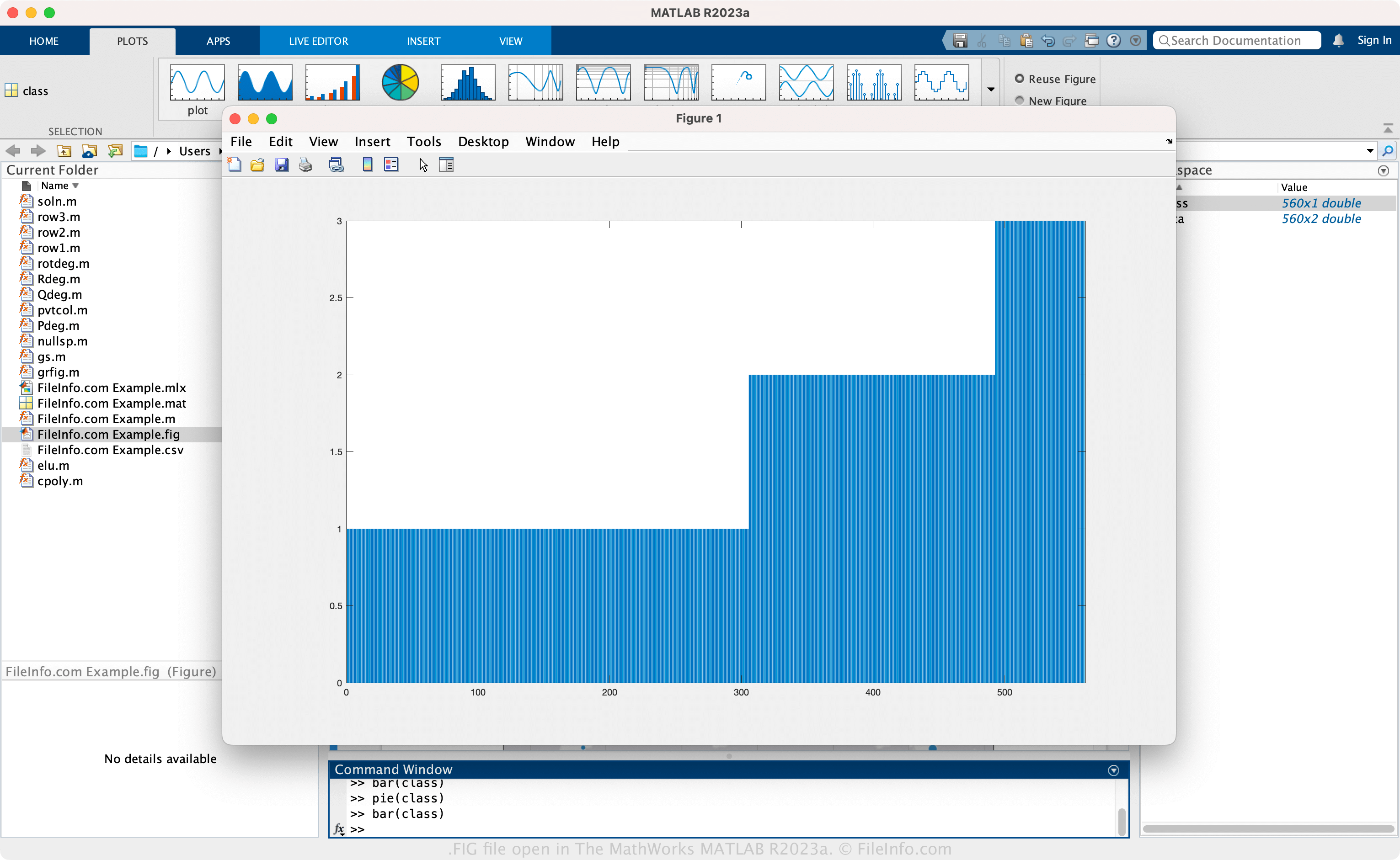
MATLAB to zaawansowana aplikacja, która udostępnia różne narzędzia do analizowania danych, tworzenia algorytmów i modeli, budowania aplikacji oraz nie tylko. W MATLAB-ie figura to dane przedstawione w formie wykresu, takiego jak histogram lub wykres kołowy, wygenerowanego na podstawie danych matematycznych. Ponadto funkcja figure tworzy figurę (okno), która umożliwia wstawianie wykresów.
Jak utworzyć plik FIG za pomocą MATLAB-a
Aby utworzyć plik FIG:
- Wybierz zmienną, którą chcesz przedstawić na wykresie, w panelu "Workspace".
- Kliknij wykres na karcie .
- Wybierz lub .
- Nazwij plik i wybierz miejsce jego zapisu
- Wybierz
UWAGA: Figurę można również zapisać jako plik FIG za pomocą funkcji saveas(fig,filename).
Jak otworzyć plik FIG
Plik FIG można otworzyć za pomocą programu The MathWorks MATLAB (wieloplatformowego). Aby otworzyć plik FIG, kliknij wykres na karcie "PLOTS", a następnie wybierz . Plik FIG można również otworzyć za pomocą funkcji openfig(filename).
Jak przekonwertować plik FIG
Program The MathWorks MATLAB może konwertować pliki FIG do innych typów plików, w tym do następujących formatów:
- .JPG - obraz JPEG
- .PNG - grafika PNG
- .BMP - obraz bitmapowy
- .TIF - Tagged Image File Format
- .EPS - Encapsulated PostScript
- .PCX - obraz bitmapowy Paintbrush
- .PPM - obraz Portable Pixmap
- .PDF - Portable Document Format
Aby przekonwertować plik FIG, kliknij wykres na karcie "PLOTS", a następnie wybierz .
Programy otwierające pliki FIG
Projekt Figma
| Deweloper | Figma |
| Popularność |
4,6 | 5 Głosów |
Plik FIG to projekt utworzony w programie Figma — narzędziu do współpracy, które umożliwia zespołom tworzenie i udostępnianie makiet oraz pomysłów. Jest zapisywany w zastrzeżonym formacie Figma Design (FIG), który przechowuje informacje o projekcie, w tym jedną lub więcej stron (z jedną lub większą liczbą warstw) oraz rozmieszczenie elementów projektu i prototypu. Użytkownicy programu Figma zapisują swoje projekty jako pliki FIG, aby zachować postępy, a następnie udostępniają je innym użytkownikom programu Figma lub eksportują do formatów obrazów albo dokumentów, takich jak .JPG lub .PDF.
Więcej informacji
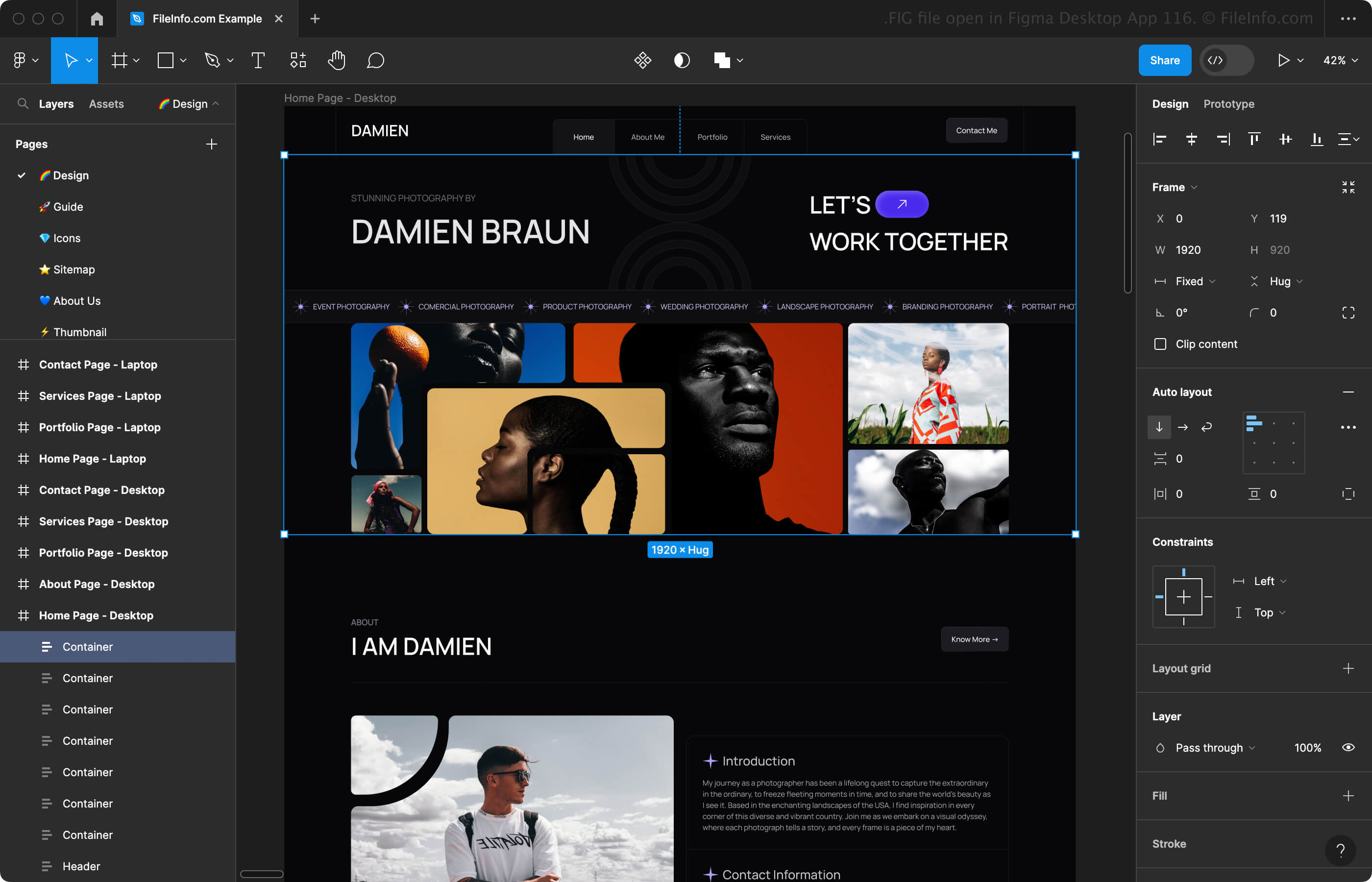
Figma to program online, aplikacja komputerowa dla systemów Windows i macOS oraz aplikacja mobilna dla systemów Android i iOS. Aplikacja składa się z dwóch obszarów roboczych:
- Figma design - Umożliwia tworzenie makiet witryn internetowych, aplikacji, produktów cyfrowych i innych rodzajów doświadczeń użytkownika.
- FigJam - Umożliwia tworzenie i udostępnianie internetowych tablic do spotkań, sesji burzy mózgów, diagramów i innych celów.
Podczas tworzenia makiety w obszarze roboczym Figma design możesz wybrać ramkę (telefon, tablet, komputer stacjonarny, prezentacja, niestandardowy rozmiar itd.), w której chcesz projektować, a także wybrać spośród wielu elementów projektu (tekst, kształty, obrazy itd.) i elementów prototypu (połączenia, komponenty itd.), które chcesz dodać. W miarę tworzenia makiety możesz zapisywać ją jako plik FIG, aby zachować postępy.
Aby zapisać plik FIG w programie Figma w przeglądarce internetowej lub aplikacji komputerowej, kliknij ikonę Figma w lewym górnym rogu i wybierz opcję (przeglądarka internetowa automatycznie pobierze plik FIG). Możesz także zapisać projekt w historii wersji powiązanej z kontem online, wybierając opcję zamiast opcji .
Jak otworzyć plik FIG
Plik FIG można otworzyć w programie Figma w przeglądarce internetowej, aplikacji komputerowej dla systemu Windows lub macOS albo aplikacji mobilnej dla systemu Android lub iOS. Na przykład plik FIG można otworzyć w komputerowej wersji programu Figma, wybierając ikonę strony głównej w lewym górnym rogu, a następnie klikając opcję w prawym górnym rogu.
Jak przekonwertować plik FIG
Programy otwierające pliki FIG
Rysunek Xfig
| Deweloper | Xfig |
| Popularność |
3,2 | 14 Głosów |
Plik FIG to rysunek liniowy utworzony za pomocą aplikacji Xfig lub WinFIG. Jest to plik obrazu wektorowego, który może zawierać kształty, łuki, splajny, strzałki i obiekty tekstowe. Użytkownicy mogą również dodawać do swoich rysunków FIG obrazy, kolory i wzory.
Więcej informacji
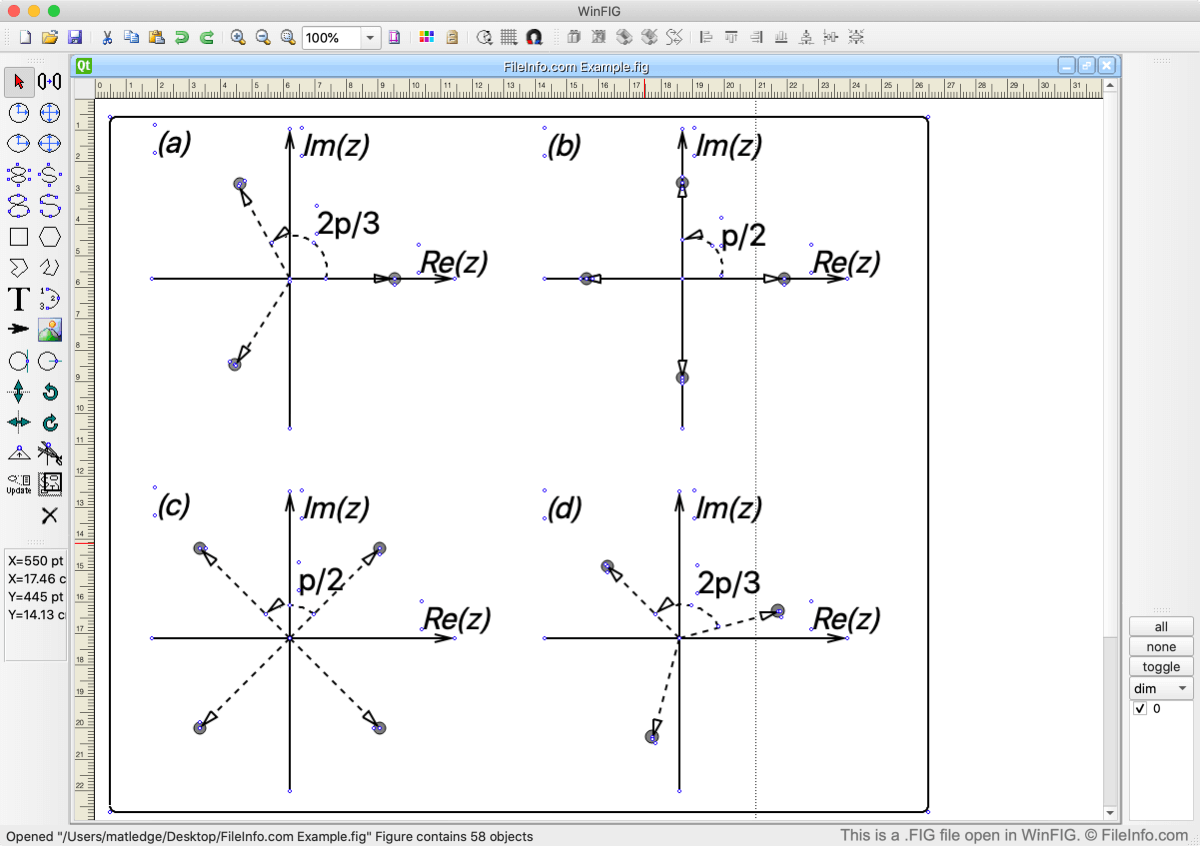
Format FIG został pierwotnie opracowany dla programu Xfig, opartego na systemie Linux programu do rysowania wydanego w 1985 roku. Wielu innych deweloperów rozbudowało możliwości Xfig i wydało własne wersje programu dostępne na komputerach z systemami Windows i Mac. Spośród tych nowszych aplikacji tylko WinFIG nadal umożliwia użytkownikom otwieranie, edytowanie i tworzenie rysunków FIG.
Jak otworzyć plik FIG
Pliki FIG można otwierać w aplikacji WinFIG, wieloplatformowym edytorze grafiki wektorowej. W tym celu wybierz z paska menu WinFIG. Następnie przejdź do pliku FIG i otwórz go.
Jak przekonwertować plik FIG
Za pomocą WinFIG można konwertować pliki FIG do wielu innych formatów plików. Niektóre z nich to: