

.FIG Přípona souboru
Soubor obrázku MATLABu
| Vývojář | The MathWorks |
| Popularita |
3,8 | 16 hlasů |
Co je soubor FIG?
Soubor FIG obsahuje obrázek vytvořený aplikací The MathWorks MATLAB pro matematické výpočty a analýzu dat. Ukládá jeden nebo více grafů či diagramů, které MATLAB používá k vizualizaci dat. Soubory FIG ukládají informace ve formátu podobném binárnímu kontejnerovému formátu dat MAT-file (.MAT).
Další informace
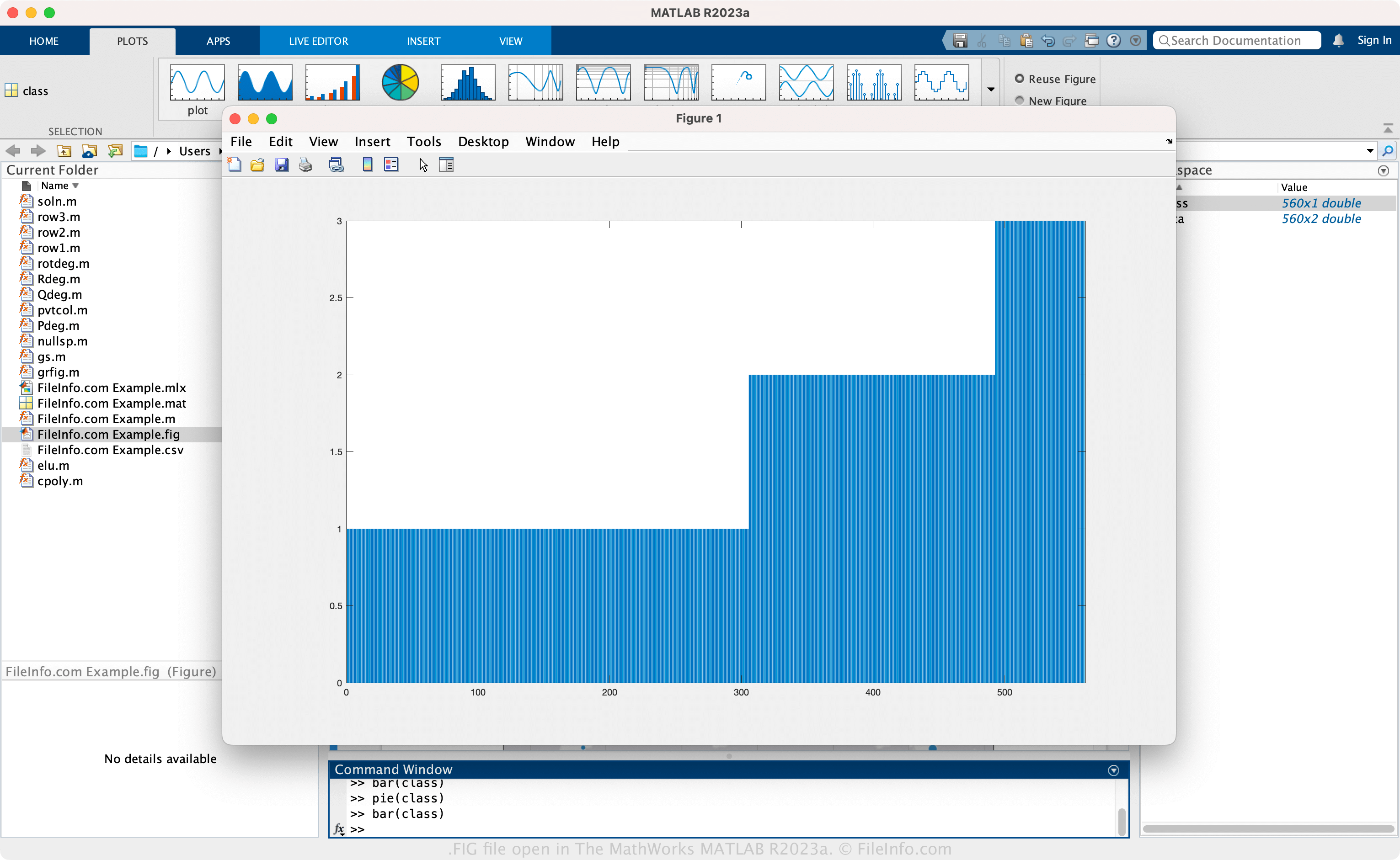
MATLAB je pokročilá aplikace, která poskytuje různé nástroje pro analýzu dat, vývoj algoritmů, vytváření modelů, tvorbu aplikací a další činnosti. V MATLABu je obrázek vizualizací dat ve formě grafu, například histogramu nebo koláčového grafu, vytvořeného z matematických dat. Funkce figure navíc vytvoří obrázek (okno), do kterého můžete vložit grafy a diagramy.
Jak vytvořit soubor FIG pomocí MATLABu
Vytvoření souboru FIG:
- V podokně "Workspace" vyberte proměnnou, kterou chcete zobrazit v grafu.
- Na kartě klikněte na graf.
- Vyberte nebo .
- Soubor pojmenujte a vyberte umístění pro jeho uložení
- Vyberte
POZNÁMKA: Obrázek můžete také uložit jako soubor FIG pomocí funkce saveas(fig,filename).
Jak otevřít soubor FIG
Soubor FIG můžete otevřít pomocí aplikace The MathWorks MATLAB (pro více platforem). Soubor FIG otevřete kliknutím na graf na kartě "PLOTS" a následným výběrem možnosti . Soubor FIG můžete také otevřít pomocí funkce openfig(filename).
Jak převést soubor FIG
The MathWorks MATLAB dokáže převádět soubory FIG do jiných typů souborů, včetně následujících formátů:
- .JPG - obrázek JPEG
- .PNG - obrázek Portable Network Graphic
- .BMP - bitmapový obrázek
- .TIF - Tagged Image File Format
- .EPS - Encapsulated PostScript
- .PCX - bitmapový obrázek Paintbrush
- .PPM - obrázek Portable Pixmap
- .PDF - Portable Document Format
Soubor FIG převedete kliknutím na graf na kartě "PLOTS" a následným výběrem možnosti .
Programy, které otevírají soubory FIG
Návrh Figma
| Vývojář | Figma |
| Popularita |
4,6 | 5 hlasů |
Soubor FIG je návrh vytvořený v programu Figma, nástroji pro spolupráci, který týmům umožňuje vytvářet a sdílet makety a nápady. Ukládá se v proprietárním formátu Figma Design (FIG), který obsahuje informace o návrhu včetně jedné nebo více stránek (s jednou nebo více vrstvami) a umístění prvků návrhu a prototypu. Uživatelé programu Figma ukládají své návrhy jako soubory FIG, aby zachovali dosavadní práci, a poté je sdílejí s dalšími uživateli programu Figma nebo je exportují do obrazových či dokumentových formátů, například .JPG nebo .PDF.
Další informace
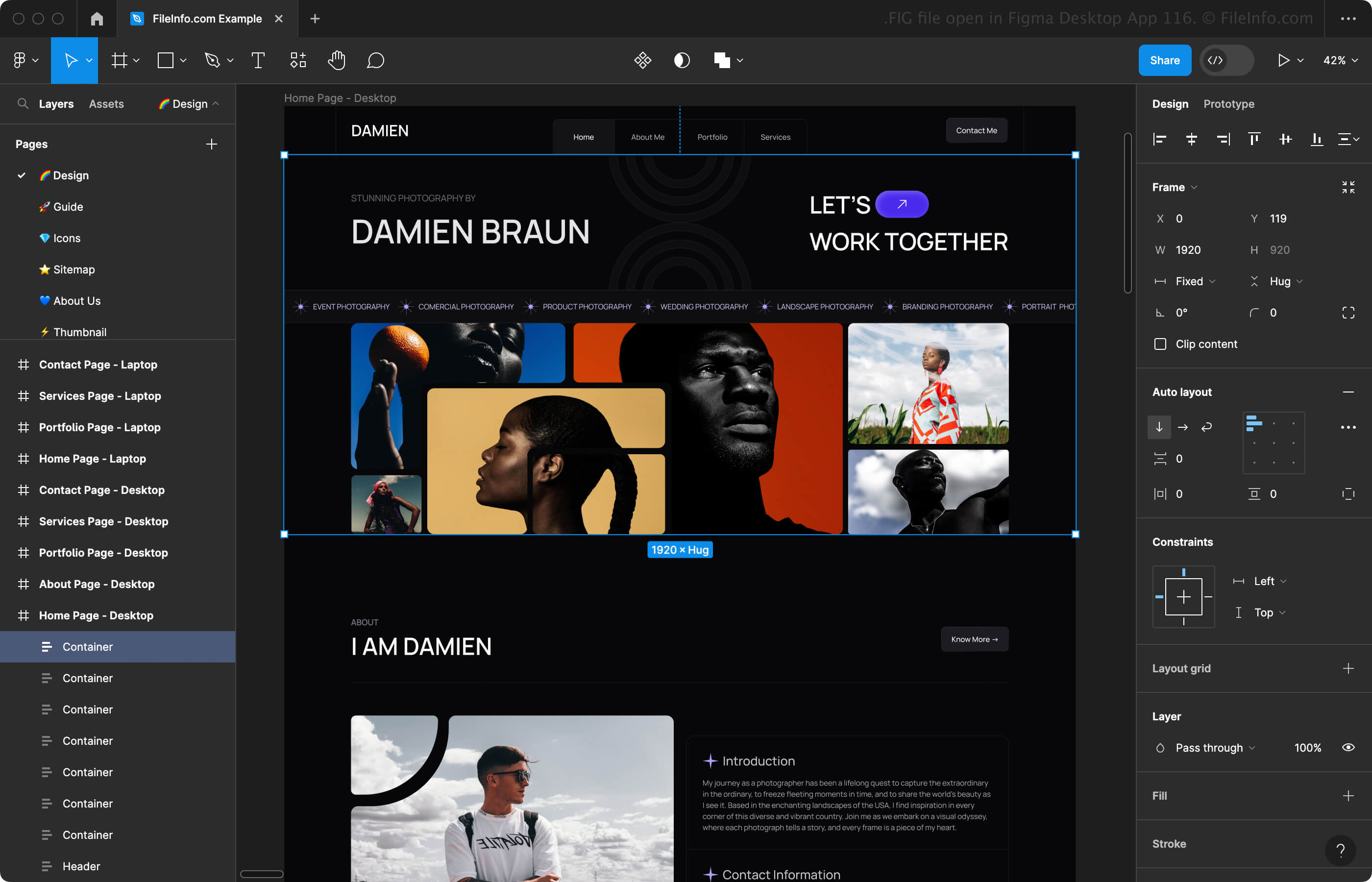
Figma je online program, desktopová aplikace pro Windows a macOS a mobilní aplikace pro Android a iOS. Aplikace se skládá ze dvou pracovních prostorů:
- Figma design - Umožňuje vytvářet makety webových stránek, aplikací, digitálních produktů a dalších typů uživatelských prostředí.
- FigJam - Umožňuje vytvářet a sdílet online tabule pro schůzky, brainstorming, diagramy a další účely.
Při vytváření makety v pracovním prostoru Figma design můžete vybrat rámeček (telefon, tablet, počítač, prezentace, vlastní velikost atd.), pro který chcete návrh vytvořit, a zvolit z řady prvků návrhu (text, tvary, obrázky atd.) a prvků prototypu (propojení, komponenty atd.), které chcete přidat. Při sestavování návrhu makety jej můžete uložit jako soubor FIG, abyste zachovali dosavadní práci.
Chcete-li uložit soubor FIG pomocí programu Figma ve webovém prohlížeči nebo desktopové aplikaci, klikněte na ikonu Figma v levém horním rohu a vyberte možnost (webový prohlížeč soubor FIG automaticky stáhne). Svůj návrh můžete také uložit do historie verzí propojené s online účtem tak, že místo možnosti vyberete možnost .
Jak otevřít soubor FIG
Soubor FIG můžete otevřít pomocí programu Figma ve webovém prohlížeči, desktopové aplikaci pro Windows nebo macOS nebo mobilní aplikaci pro Android či iOS. Soubor FIG můžete například otevřít v desktopové verzi programu Figma tak, že v levém horním rohu vyberete ikonu Domů a poté v pravém horním rohu kliknete na možnost .
Jak převést soubor FIG
Programy, které otevírají soubory FIG
Kresba Xfig
| Vývojář | Xfig |
| Popularita |
3,2 | 14 hlasů |
Soubor FIG je čárová kresba vytvořená pomocí aplikace Xfig nebo WinFIG. Jedná se o soubor s vektorovým obrázkem, který může obsahovat tvary, oblouky, spline křivky, šipky a textové objekty. Uživatelé mohou do svých kreseb FIG také přidávat obrázky, barvy a vzory.
Další informace
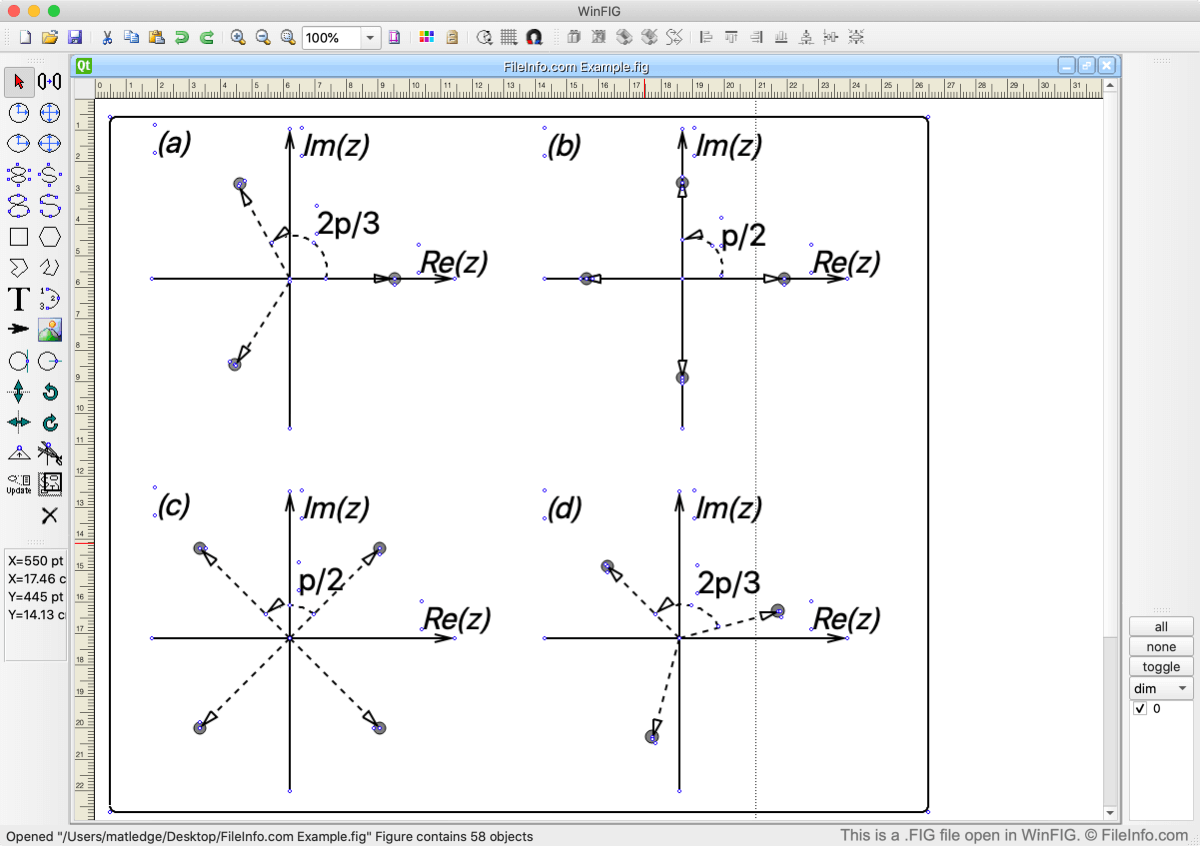
Formát FIG byl původně vyvinut pro Xfig, kreslicí program pro Linux vydaný v roce 1985. Mnoho dalších vývojářů rozšířilo možnosti Xfigu a vydalo vlastní verze tohoto programu, které jsou dostupné pro počítače s Windows a Mac. Z těchto novějších aplikací pouze WinFIG stále umožňuje uživatelům otevírat, upravovat a vytvářet kresby FIG.
Jak otevřít soubor FIG
Soubory FIG můžete otevřít v aplikaci WinFIG, multiplatformním editoru vektorové grafiky. To provedete výběrem možnosti na liště nabídek aplikace WinFIG. Poté vyhledejte a otevřete svůj soubor FIG.
Jak převést soubor FIG
Pomocí aplikace WinFIG můžete převádět soubory FIG do mnoha dalších formátů. Mezi tyto formáty patří: