

.XEF Bestandsextensie
WinAce-versleuteld bestand
| Ontwikkelaar | E-merge |
| Populariteit |
3,0 | 3 stemmen |
Een XEF-bestand is een bestand dat door E-merge WinAce is versleuteld, een beëindigd archiverings- en versleutelingsprogramma. Het bevat een document, afbeelding, video of ander type bestand dat is versleuteld om onbevoegde toegang te voorkomen. Om een XEF-bestand te openen, moet je het wachtwoord kennen dat is gebruikt om het te versleutelen.
Meer informatie
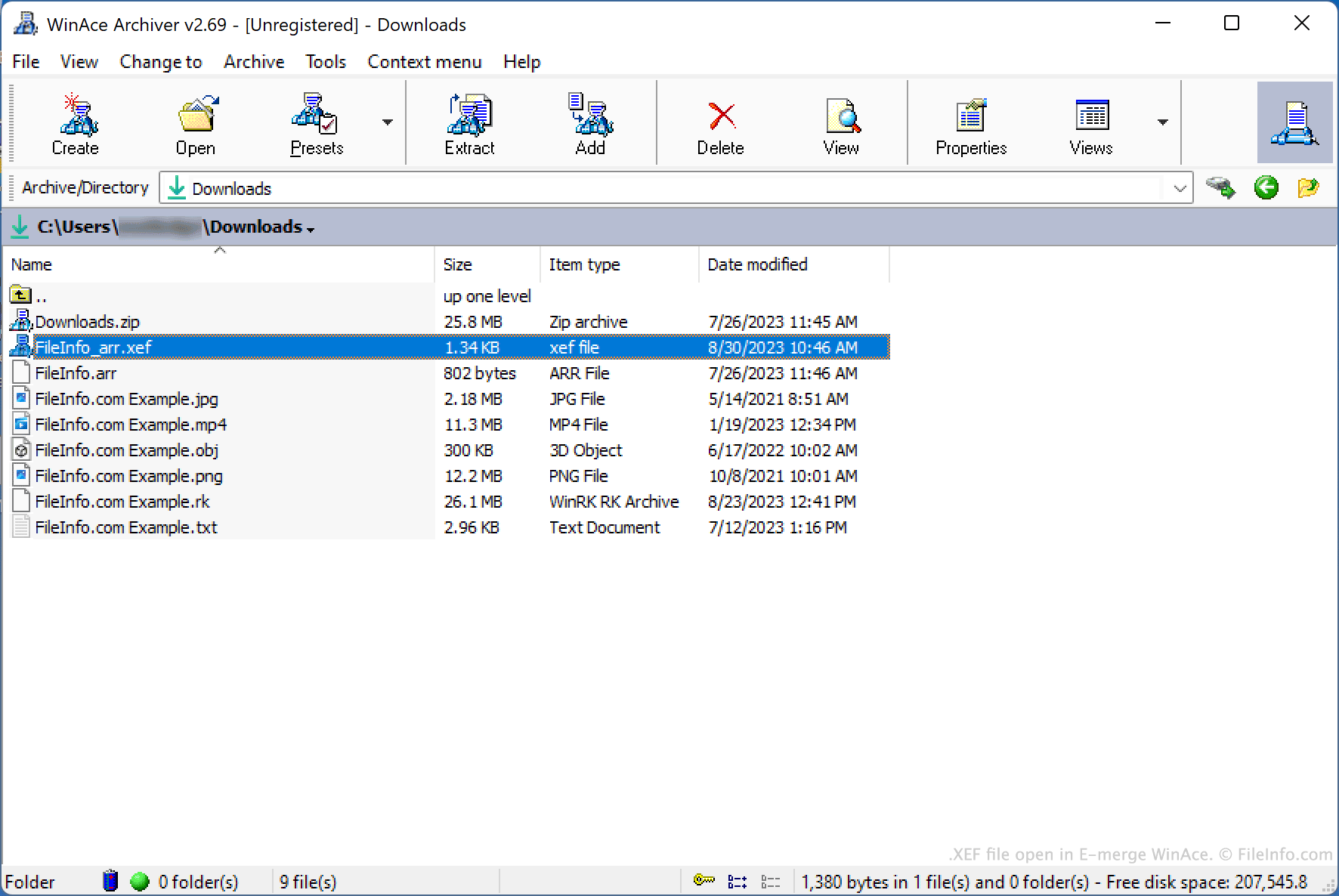
WinAce is een archiverings- en bestandsversleutelingsprogramma dat beschikbaar was voor Windows. Gebruikers konden hiermee bestanden verpakken in gecomprimeerde archieven (die doorgaans werden opgeslagen in WinAce's eigen .ACE-archiefindeling) en afzonderlijke bestanden versleutelen met behulp van verschillende versleutelingsmethoden.
Om een bestand met WinAce te versleutelen, deden gebruikers het volgende:
- Selecteerden ze het bestand in de bestandsverkenner van WinAce.
- Selecteerden ze in de menubalk van WinAce.
- Gaven ze het gewenste wachtwoord en de gewenste versleutelingsmethode op.
- Klikten ze op .
WinAce maakte vervolgens een versleutelde kopie van het bestand van de gebruiker, die werd opgeslagen als XEF-bestand.
Een gebruiker kon er optioneel voor kiezen om de naam van het oorspronkelijke bestand op te nemen in de naam van het versleutelde bestand, of de naam van het versleutelde bestand willekeurig te laten instellen. Ook konden gebruikers ervoor kiezen om WinAce het oorspronkelijke, onversleutelde bestand te laten verwijderen als onderdeel van het versleutelingsproces.
Een XEF-bestand openen
Je kunt een XEF-bestand ontsleutelen met E-merge WinAce (Windows) om het versleutelde bestand dat het bevat te herstellen. Hoewel WinAce niet meer wordt ontwikkeld, is het nog steeds online te downloaden.
Een XEF-bestand openen met WinAce:
- Open WinAce en ga in de bestandsverkenner van het programma naar je XEF-bestand en selecteer het.
- Selecteer in de menubalk van WinAce.
- Voer in het venster het wachtwoord in dat is gebruikt om je XEF-bestand te versleutelen.
- Klik op .
WinAce ontsleutelt vervolgens je XEF-bestand en maakt een kopie van je oorspronkelijke, onversleutelde bestand.