.XEF 파일 확장자

2개의 파일 유형.xef 확장자를 사용합니다.

eManager Form Data

개발사 X-Genics
인기도
3.2  |  5 투표
 

XEF 파일이란 무엇인가요?

An XEF file is a form data file used by X-Genics eManager, a content management suite (CMS) for other X-Genics applications. It contains data a user entered in an X-Genics form. The data that XEF files contain is saved in an XML format.

추가 정보

Businesses use X-Genics eManager, and its associated dashboard and SmartApps, to monitor and report on business performance and processes. As part of this monitoring, users can enter data in X-Genics forms. When a user enters data in an X-Genics form, that data is saved as an XEF file, for later use and review.

XEF 파일을 여는 방법

The data that XEF files contain is meant to be viewed with X-Genics eManager. However, you can also open XEF files with Microsoft Visual Studio Code or any other text editor, if you want to view the data they contain outside eManager.

File Viewer Plus(으)로 400개 이상의 파일 형식을 여세요.무료 다운로드

XEF 파일을 여는 프로그램

카테고리: 데이터
업데이트: 2023-06-01

WinAce Encrypted File

개발사 E-merge
인기도
3.0  |  3 투표
 

An XEF file is a file that has been encrypted by E-merge WinAce, a discontinued archive and encryption utility. It contains a document, image, video, or other type of file, which has been encrypted to prevent unauthorized access. To open an XEF file, you must know the password used to encrypt it.

추가 정보

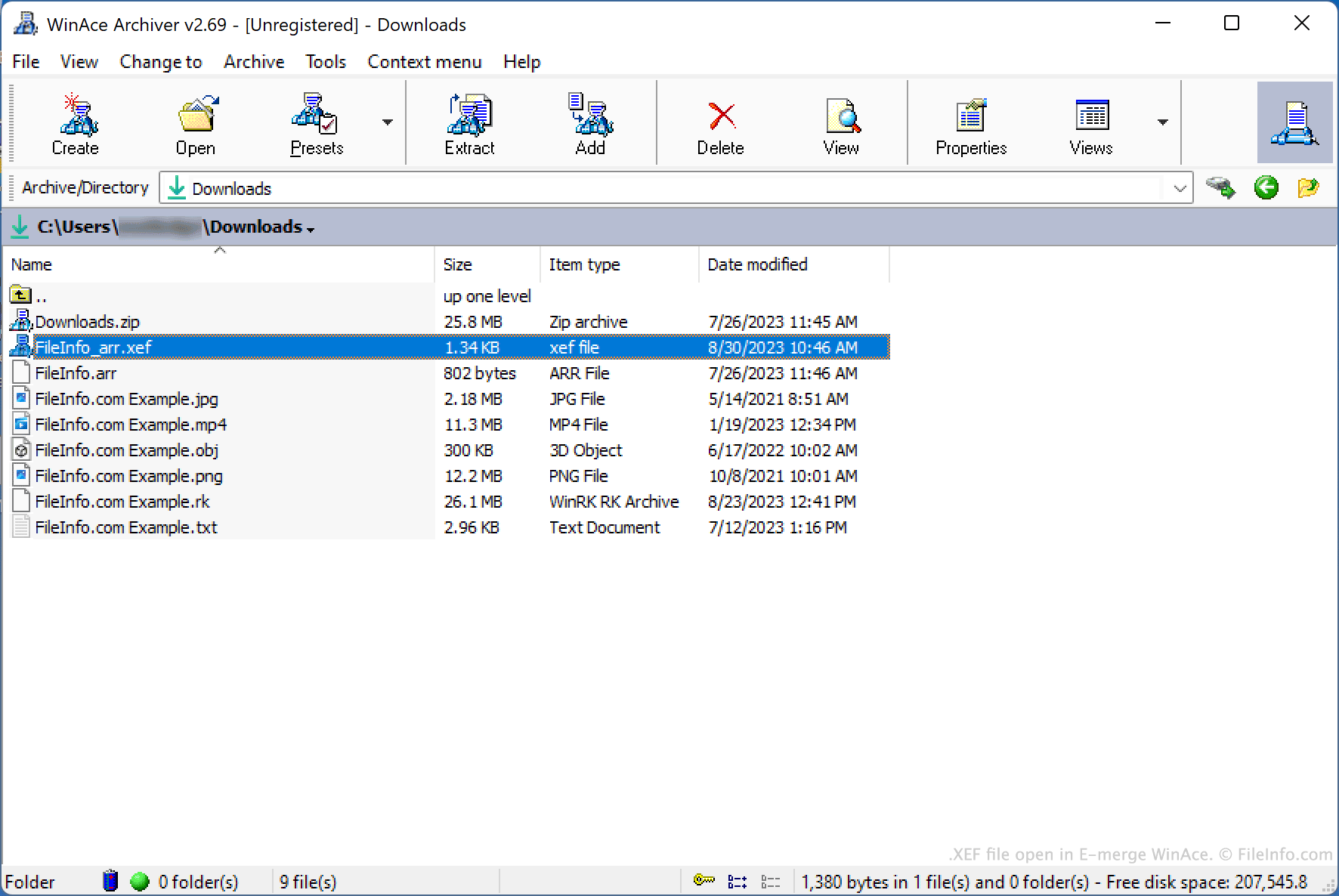
E-merge WinAce에서 열린 .xef 파일의 스크린샷
E-merge WinAce에서 열린 XEF 파일

WinAce is an archiving and file encryption utility that was available for Windows. It allowed users to package files in compressed archives (typically saved in WinAce's proprietary .ACE archive format) and encrypt individual files, using a variety of encryption methods.

To encrypt a file with WinAce, users:

  1. Selected the file in WinAce's file explorer.
  2. Selected File → Encrypt/Encode... → Encrypt... from WinAce's menu bar.
  3. Specified their desired password and encryption method.
  4. Clicked Encrypt.

WinAce then created an encrypted copy of the user's file, saved as an XEF file.

Optionally, a user could choose whether to include the original file's name in the encrypted file's name, or to set the encrypted file's name randomly. They could also choose to have WinAce delete the original, unencrypted file as part of the encryption process.

XEF 파일을 여는 방법

You can decrypt an XEF file with E-merge WinAce (Windows), to restore the encrypted file it contains. While WinAce is discontinued, it is still available for download online.

To open an XEF file with WinAce:

  1. Open WinAce and, in the app's file explorer, navigate to and select your XEF file.
  2. Select File → Encrypt/Encode... → Decrypt... from WinAce's menu bar.
  3. In the Decrypt files window, enter the password used to encrypt your XEF file.
  4. Click Decrypt.

WinAce will then decrypt your XEF file and create a copy of your original, unencrypted file.

XEF 파일을 여는 프로그램

Windows
무료 체험판
카테고리: 인코딩
업데이트: 2023-08-30

검증자 FileInfo.com

FileInfo.com 팀 이 페이지에 나열된 모든 파일 형식과 소프트웨어 프로그램을 독자적으로 조사했습니다. 저희의 목표는 100% 정확성이며, 검증한 파일 유형에 대한 정보만 게시합니다.

이 페이지에 추가하거나 업데이트할 내용을 제안하고 싶으시면 알려 주세요.