.PLP Extension de fichier

Photo Locker Picture

Développeur Rupees & Dollars
Popularité
3.9  |  86 Votes
 

Qu'est-ce qu'un fichier PLP ?

Locked picture created by Photo Locker, an Android app used to hide photos on your device; stores a picture that has been "locked" by the app in order to hide the image from being viewed by others.

Plus d'informations

You can manually restore your locked PLP pictures by navigating to the Photo Locker folder in your device's storage. Then rename the ".plp" file extension of your picture(s) with the ".jpg" or ".png" extension.

Ouvrez plus de 400 formats de fichiers avec File Viewer Plus.Téléchargement gratuit

Programmes qui ouvrent les fichiers PLP

Android
Rupees & Dollars Photo Locker  —  Abandonné
Gratuit
Catégorie : Encodé
Mis à jour : 2015-11-23

PixelLab Project

Développeur App Holdings
Popularité
3.7  |  6 Votes
 

A PLP file is a photo editing project created by App Holdings PixelLab, a photo editor for Android. It contains an image and may also contain text, shapes, stickers, and drawings added to that image. Users can open PLP files in PixelLab to edit the project they contain.

Plus d'informations

PixelLab allows you to import photos and add text, effects, backgrounds, stickers, and drawings to them. You can then export your edited photo in a variety of image formats.

Optionally, you can save your PixelLab photo editing projects as PLP files. This allows you to continue editing the project in the future or share the project with other PixelLab users. To save a project as a PLP file:

  1. Open the app's my projects menu.
  2. Click the Share button.

This will save the project as a PLP file in the ~/​pixelLab directory.

Comment ouvrir un fichier PLP

You can open a PLP file with App Holdings PixelLab (Android). To do so:

  1. Open the app's my projects menu.
  2. Select the .PLP button.
  3. Navigate to and open your PLP file.

Comment convertir un fichier PLP

You can use App Holdings PixelLab (Android) to convert PLP files to the following formats:

  • .JPG - JPEG Image
  • .PNG - Portable Network Graphic

To do so:

  1. Select the Save icon.
  2. Choose save as image.
  3. Specify your image format.
  4. Select SAVE TO GALLERY.

PixelLab will save the converted image in your phone's Gallery.

Programmes qui ouvrent les fichiers PLP

Android

Archicad Teamwork Project

Développeur GRAPHISOFT
Popularité
3.6  |  5 Votes
 

A PLP file is a teamwork project created with GRAPHISOFT Archicad architectural designing software. It stores all model data and views from Archicad for the project, along with settings and references to libraries hosted on BIMcloud. PLP files are similar to .PLN solo projects, but are shared to BIMcloud for other Archicad users to access and modify.

Plus d'informations

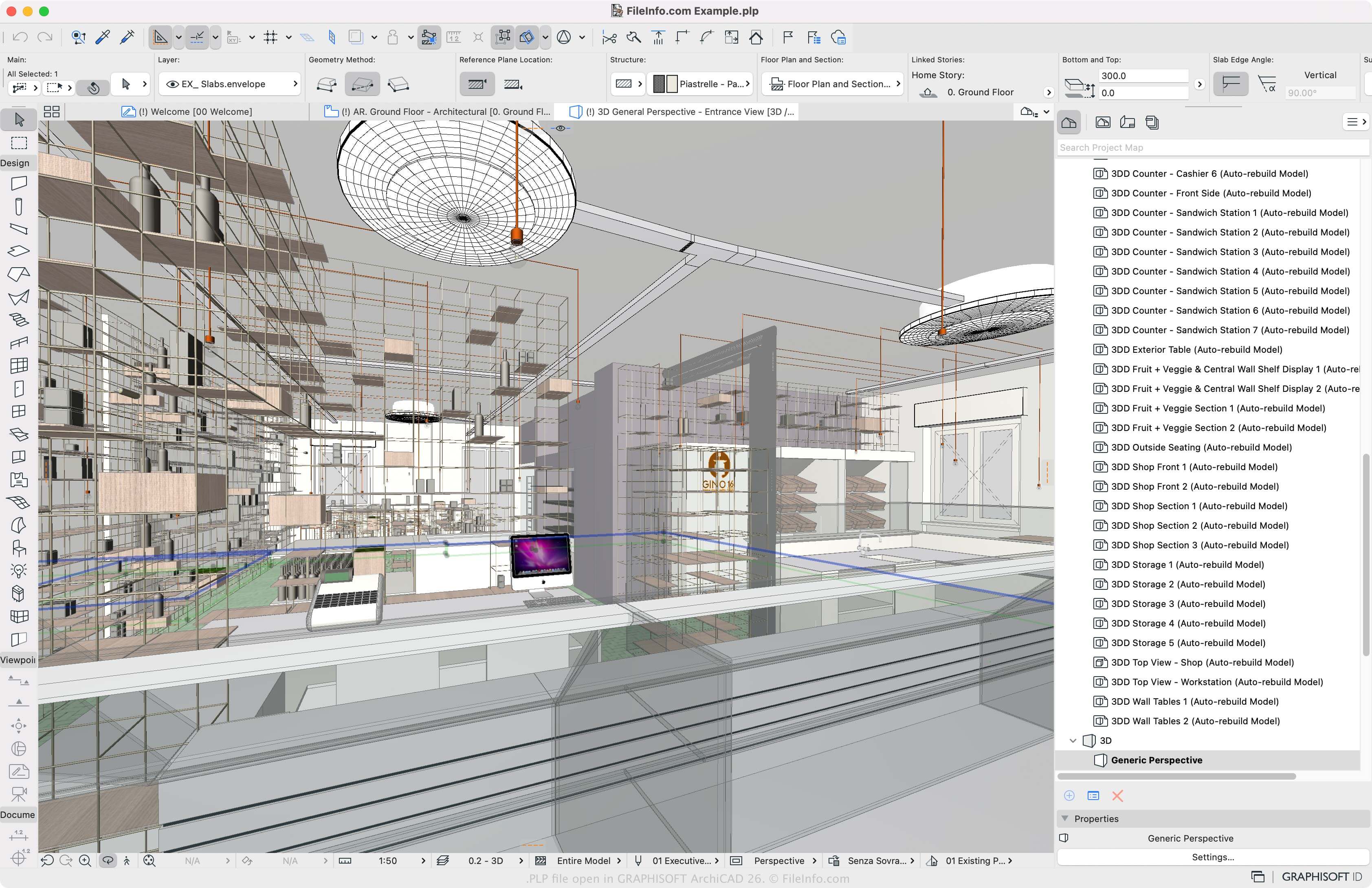
Capture d'écran d'un fichier .plp dans GRAPHISOFT Archicad 26
Fichier PLP ouvert dans GRAPHISOFT Archicad 26

GRAPHISOFT Archicad is a building information modeling (BIM) application many architects use to design the appearance of structures, including their interiors, exteriors, and landscapes. The main Archicad project format is the PLN solo project format. To allow multiple Archicad users to work on the same project in different locations, GRAPHISOFT introduced the PLP format.

How to create a PLP file with Archicad

To create a PLP file, open a PLN file (File → Open) and select Teamwork → Project → Share or File → New → Share. You must then log in to BIMcloud if you have not already, then can click Share, and choose the team project settings.

Comment ouvrir un fichier PLP

You can only open PLP files with GRAPHISOFT Archicad in Windows and macOS. To open a PLP file, select File → Open → Open/Join Teamwork Project. You can also choose Teamwork → Project → Open/Join Teamwork Project.

Programmes qui ouvrent les fichiers PLP

Windows
Version d'essai gratuite
Mac
Version d'essai gratuite
Catégorie : CAO
Mis à jour : 2023-03-10

Vérifié par FileInfo.com

L'équipe FileInfo.com a mené des recherches indépendantes sur tous les formats de fichiers et logiciels répertoriés sur cette page. Notre objectif est une précision de 100%, et nous ne publions que des informations sur les types de fichiers que nous avons vérifiés.

Si vous souhaitez suggérer des ajouts ou des mises à jour de cette page, faites-le-nous savoir.