.STATE 文件扩展名

RetroArch Game Save State

开发者 libretro
受欢迎程度
3.9  |  7 
 

什么是 STATE 文件?

A STATE file is a save state created by RetroArch, a cross-platform video game console emulator. It contains data that allows a player to resume an in-progress, emulated game. While STATE files save users' progress, they are different than .SAV files. STATE files can be opened only in RetroArch.

更多信息

Nostalgic gamers can use a variety of video game console emulators to play old games on their PCs and other devices. RetroArch is one such emulator. When a gamer wants to save their progress while playing a game in RetroArch, they do so by creating a save state. A save state is a snapshot of a gamer's current game state, and it is saved in a STATE file. Most often, gamers create STATE files when they are about to quit an in-progress game, so they can resume the game at a later time.

Notably, RetroArch users can save different game states to different state slots within the same STATE file. This allows players to create multiple game saves and resume their progress from different points within a game. Players can select different state slots when saving or loading game states from RetroArch's quick menu.

While all video game emulators allow users to save in-progress games, most use different game save formats. For example, some Nintendo console emulators create SAV files that represent saved games. RetroArch is the only emulator that creates and loads STATE files.

注: RetroArch users can check where their STATE files are stored by selecting Settings → Directory from RetroArch's main menu.

如何打开 STATE 文件

You can open a STATE file in RetroArch (cross-platform). To do so, you must:

  1. Possess both RetroArch and a .ROM file that contains the game your STATE file was created from.
  2. Move your STATE file to RetroArch's saves directory (or whatever directory your version of RetroArch stores STATE files in).
  3. Open your ROM in RetroArch.
  4. Pause your game and select Load State from RetroArch's quick menu.

Because RetroArch can save different game states in different state slots, you may have to change the state slot RetroArch loads data from to access a specific game state saved within your STATE file.

使用File Viewer Plus打开 400 多种文件格式。免费下载

可打开 STATE 文件的程序

Windows
免费
Mac
免费
Linux
免费
分类: 游戏
更新时间: 2021-01-18

Luminar Edit Log File

开发者 Skylum Software
受欢迎程度
2.0  |  1 
 

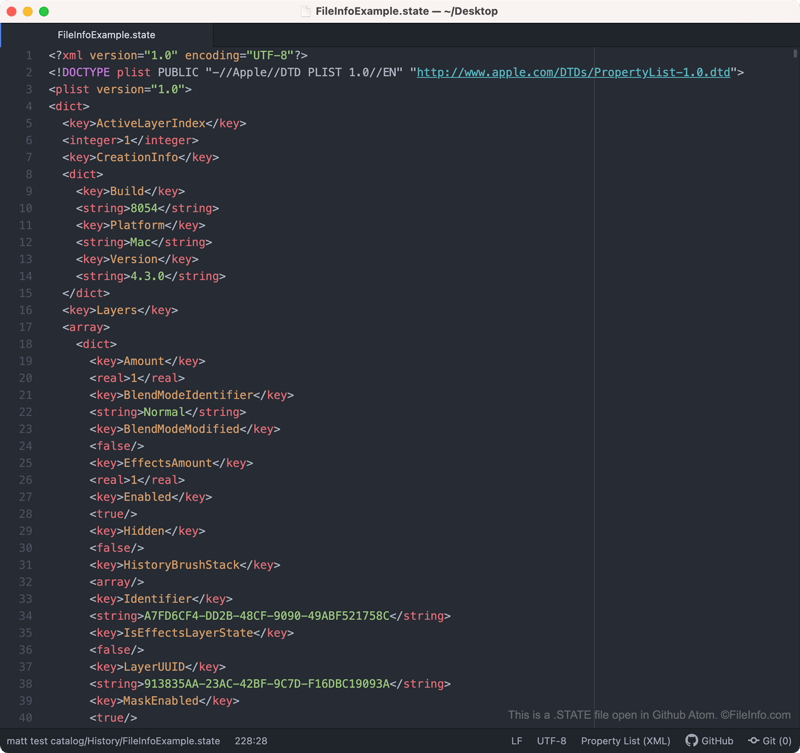
A STATE file is an XML file created by Luminar 4, a digital photo-editing application. It contains a record of the layer-based edits a photographer has applied to a photo within Luminar 4. STATE files are stored in the History folder found within a Luminar catalog.

更多信息

在 Github Atom 中打开的 .state 文件截图
在 Github Atom 中打开的 STATE 文件

Luminar is a digital photo-editing application that allows photographers to make layer-based edits to their photos. In Luminar 4, edited photos and a record of the edits made to those photos are saved in Luminar catalogs. The photos are saved as .TIFF files, and each photo's edit record is saved within numerous STATE files.

Each STATE file contains a record of the edits made to a photo up to a certain point. Each time you make an additional edit to a photo, Luminar 4 creates a new STATE file to record that edit (as well as all previous edits). As such, you will usually find many STATE files saved within each Luminar catalog.

如何打开 STATE 文件

Luminar STATE files are not meant to be opened. However, if you want to view the XML that a STATE file contains, you can open it in any text editor, such as Microsoft Notepad, Apple TextEdit, or Github Atom.

可打开或引用 STATE 文件的程序

Windows
免费试用
Mac
免费试用
Linux
分类: 数据
更新时间: 2020-11-16

验证者 FileInfo.com

FileInfo.com 团队 独立研究了本页面列出的所有文件格式和软件程序。 我们的目标是达到 100% 的准确率,并且仅发布我们已验证过的文件类型信息。

如果您想为此页面提出新增或更新建议,请告诉我们