

.PAPERT Extension de fichier
Modèle de document Dropbox Paper
| Développeur | Dropbox |
| Popularité |
2,0 | 1 Vote |
Qu'est-ce qu'un fichier PAPERT ?
Un fichier PAPERT est un modèle pour un document .PAPER créé par Dropbox Paper, un outil en ligne de collaboration et de modification de documents. Il contient des informations sur tous les éléments inclus dans le modèle, comme du texte mis en forme, des listes, des tableaux, des graphiques, des formulaires interactifs et des images, vidéos et chansons importées.
Plus d'informations
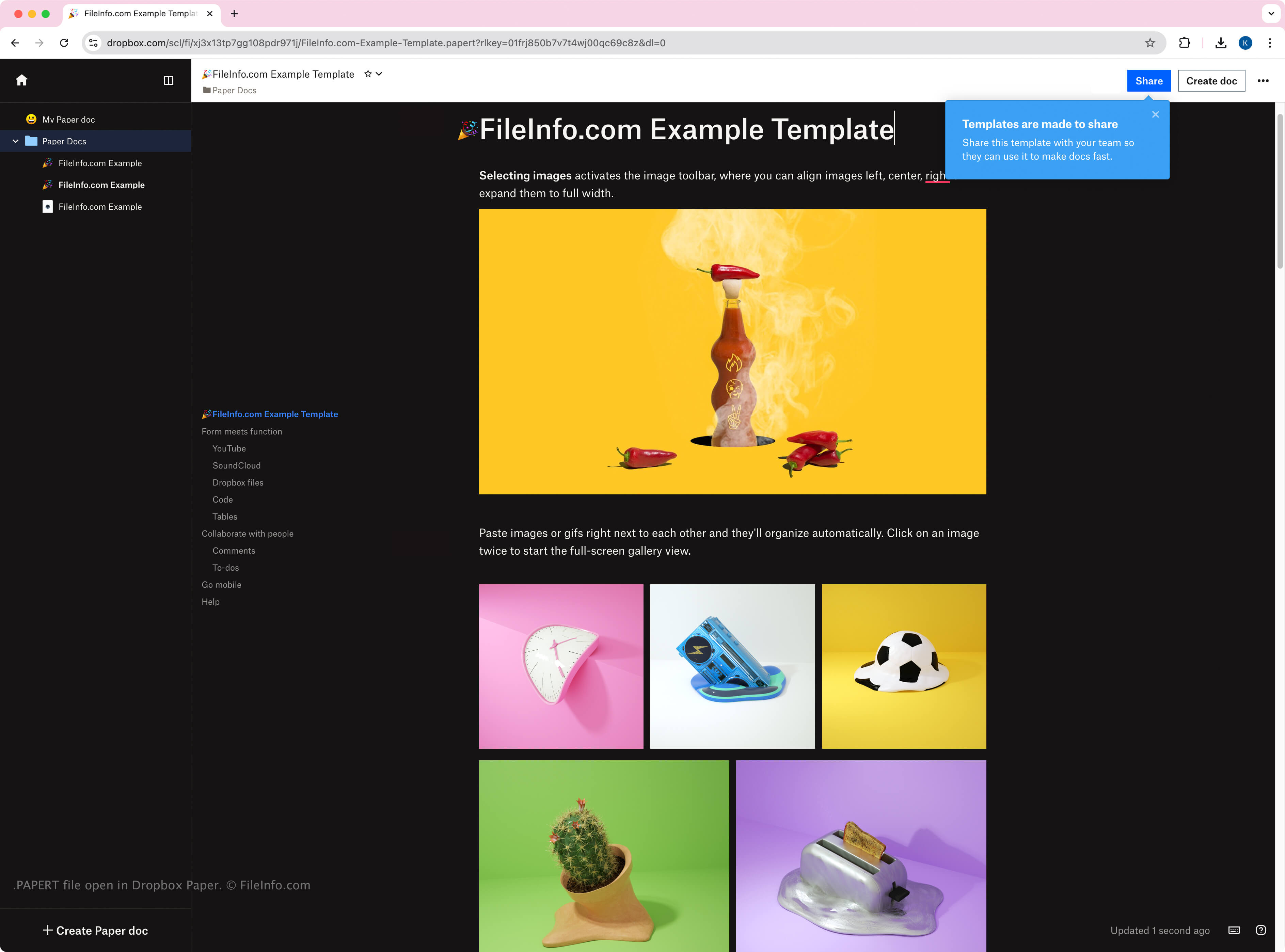
Dropbox a lancé Paper en 2017 comme outil gratuit destiné aux utilisateurs de Dropbox pour collaborer avec d'autres personnes dans un espace de travail en ligne où ils peuvent créer, examiner, modifier, organiser et présenter des idées. Bien que les modèles PAPERT enregistrent leur contenu dans le même format que les documents PAPER, les utilisateurs de Paper créent et partagent les modèles afin de conserver la mise en forme et le contenu d'un document qu'ils souhaitent reproduire. Les utilisateurs peuvent créer un modèle PAPERT à partir d'un document PAPER en ouvrant le document, en cliquant sur l'icône (points de suspension), puis en sélectionnant .
Comme les fichiers PAPER, Paper utilise uniquement les fichiers PAPERT en interne, ce qui signifie que vous ne pouvez pas télécharger de fichiers PAPERT depuis l'espace de travail en ligne. Cependant, vous pouvez partager un lien permettant de télécharger un raccourci .URL vers le fichier PAPERT, sur lequel vous pouvez double-cliquer pour l'ouvrir dans l'espace de travail Paper. Le fichier s'affiche avec un trait de soulignement devant le nom du modèle, suivi de l'extension .papert.url (par exemple, _template.papert.url).
Comment ouvrir un fichier PAPERT
Vous pouvez ouvrir les fichiers PAPERT avec Dropbox Paper dans un navigateur web. Comme Paper utilise uniquement les fichiers PAPERT en interne, aucune application tierce ne les prend en charge.
Tous les documents PAPER sont accessibles depuis l'écran d'accueil de Paper, et vous pouvez cliquer dessus pour les ouvrir. Vous pouvez également les trouver dans votre dossier Dropbox si l'application de bureau Dropbox est installée, mais lorsque vous double-cliquez sur les fichiers PAPERT, ils s'ouvrent dans l'espace de travail Paper dans votre navigateur web.
Comment convertir un fichier PAPERT
Dropbox Paper peut convertir les modèles PAPERT en plusieurs types de fichiers, notamment aux formats suivants :
Vous pouvez convertir des fichiers PAPER en cliquant sur le menu (trois points horizontaux) dans le coin supérieur droit de l'espace de travail, puis en sélectionnant .