

.BACKUP Dateiendung
Garmin BaseCamp-Sicherung
| Entwickler | Garmin |
| Beliebtheit |
2,0 | 1 Stimme |
Eine BACKUP-Datei ist eine Sicherungsdatei, die ein mit Garmin BaseCamp erstelltes Projekt enthält. Sie ist ein ZIP-komprimiertes Archiv, in dem alle Projektdaten gespeichert werden, darunter eine .GDB-GPS-Datenbank und eine .GPI-Garmin-Datei mit Sonderzielen. Nutzer von Garmin BaseCamp erstellen Sicherungen, um Projekte zu bewahren und später in der Software wiederherstellen zu können.
Weitere Informationen
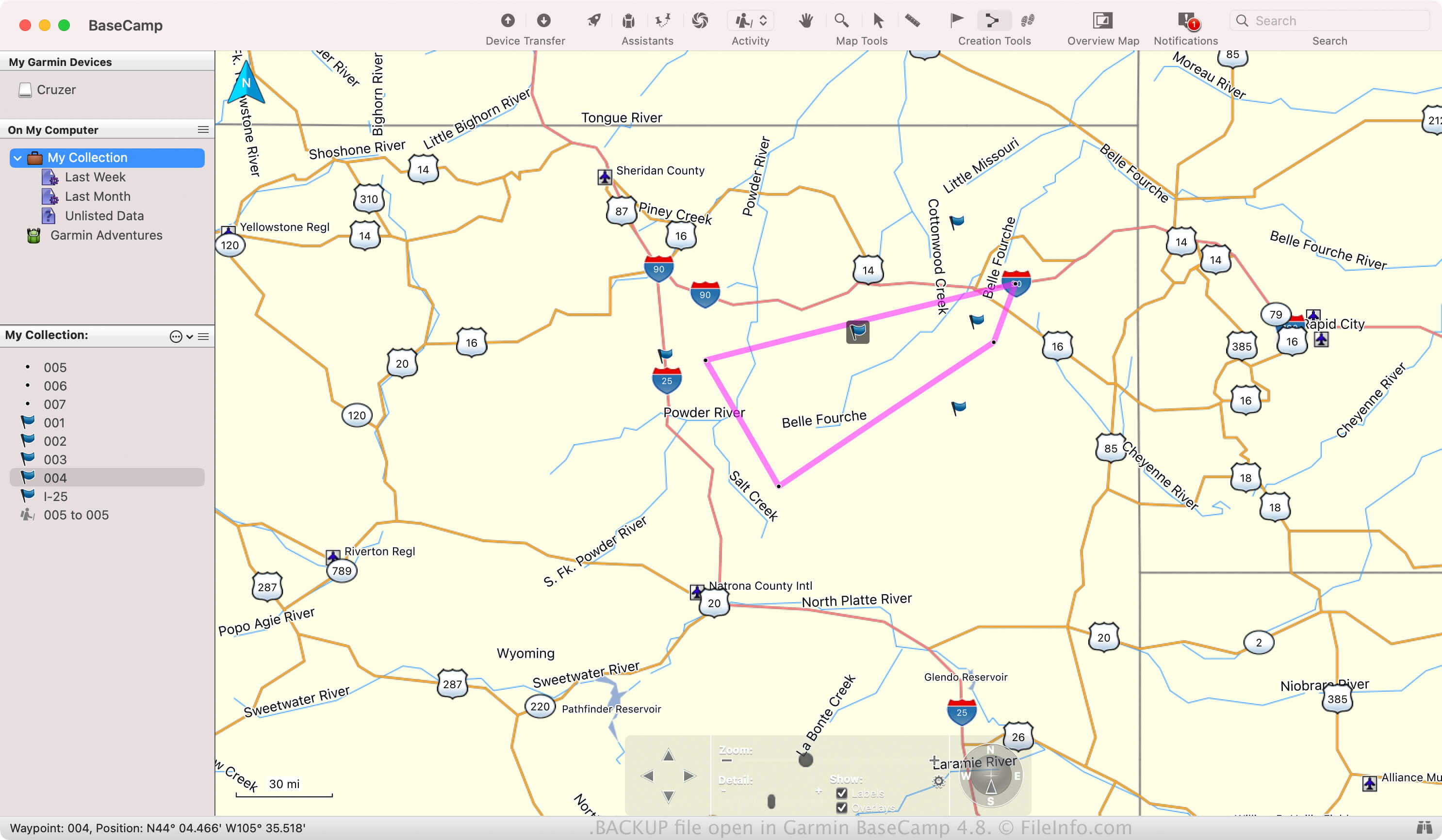
Mit BaseCamp können Sie Outdoor-Aktivitäten wie Wanderungen, Fahrradtouren oder Ausflüge mit dem Auto planen und mit anderen teilen. Sie können auch vergangene, auf Garmin-Geräten aufgezeichnete Touren importieren und sie in der Software erneut erleben.
Wenn Sie eine Aktivität für den Fall bewahren möchten, dass die Software abstürzt, oder sie auf eine andere BaseCamp-Installation übertragen möchten, können Sie sie als BACKUP-Datei speichern. Um eine BACKUP-Datei zu erstellen, wählen Sie .
Häufige .BACKUP-Dateinamen
BaseCamp_[YYMMDD].Backup - Standarddateiname, den BaseCamp BACKUP-Dateien gibt, wobei „YYMMDD“ für das Datum steht. Wenn BaseCamp beispielsweise am 25. März 2024 eine BACKUP-Datei erstellt, nennt die App die Datei BaseCamp_240325.Backup.
So öffnen Sie eine BACKUP-Datei
Sie können eine BACKUP-Datei mit Garmin BaseCamp unter Windows und macOS öffnen. Um beispielsweise eine BACKUP-Datei zu öffnen, wählen Sie .
Da BACKUP-Dateien ZIP-komprimiert sind, können Sie sie auch mit einem ZIP-Programm öffnen, z. B. mit dem Microsoft-Datei-Explorer (Windows) oder Apple Archive Utility (macOS). Sie können beispielsweise die Dateierweiterung .backup in .zip umbenennen, anschließend den Inhalt extrahieren und ihn mit einem ZIP-Programm anzeigen.